
Stop Emailing Real Customers From Staging: A Step-by-Step Guide to Email Testing
Every Swiss SME with a website or app eventually sends a test email to a real customer by accident. Here is how to set up an SMTP sandbox and make that mistake impossible.
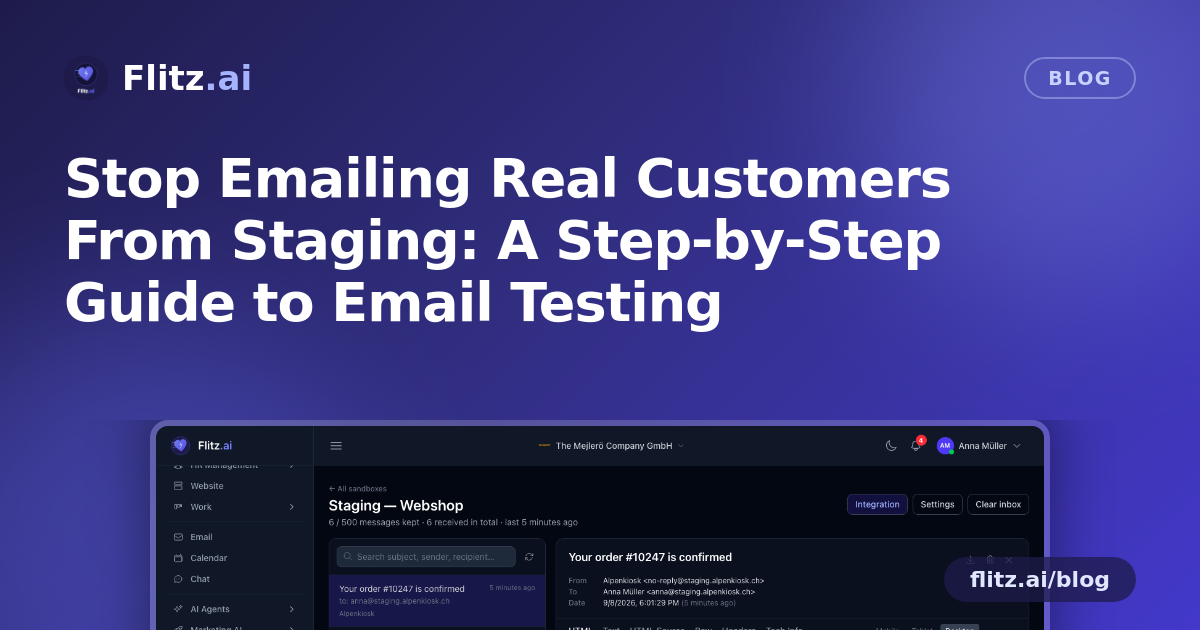
Every business that runs a website, a webshop, or an internal tool eventually hits the same awkward moment: someone forgets to switch off the mail server on staging, and a real customer receives a test invoice, a password reset with a fake name, or a confirmation email with "Lorem Ipsum" in the subject line. It is embarrassing, and it is entirely avoidable.
The usual workarounds are not great either. Teams either route all staging mail to one developer's inbox and hope nobody forwards it, disable outgoing mail entirely and never actually see what customers receive, or use their personal Gmail as a makeshift SMTP relay. None of these let you actually check how a password-reset email renders on a phone, whether the logo loads, or whether the plain-text fallback is readable.
Email Testing solves this by giving every project its own SMTP sandbox: a safe mailbox that catches every message your application tries to send, without ever touching a real inbox. Here is how to move from your current manual process to a proper automated workflow.
Step 1: Audit where your apps currently send mail
Before changing anything, list every environment that sends email: staging, QA, local development, CI pipelines, and any serverless functions that trigger notifications. For each one, note what SMTP credentials or mail provider they currently use. This is usually the step that reveals the problem — most SMEs discover at least one environment quietly pointed at the live mail server.
Step 2: Create a sandbox per project or environment
In Flitz, spin up a dedicated sandbox for each environment that needs one. Because multiple sandboxes per workspace are supported, you are not forced to share one inbox between staging, QA, and your CI runner — each gets its own SMTP login, so mail from different projects never gets mixed up and nobody can accidentally access another team's test messages.
Step 3: Swap the credentials in your app config
Take the SMTP host, port, username and password from the new sandbox and paste them into your application's mail configuration — the same place your real SMTP settings live today. No code changes, no new libraries. From this point on, every email your staging app tries to send lands in the sandbox inbox instead of a real mailbox.
Step 4: Handle hosts that cannot open a TCP port
Some CI runners and serverless platforms block outbound SMTP ports entirely. For those, use the HTTPS ingest endpoint with the same sandbox credentials. It is a drop-in fallback that gets test mail into the same inbox without needing an open port, so your pipeline tests do not become the one environment you can never verify.
Step 5: Watch mail arrive and inspect it properly
Trigger a test action — a signup, a password reset, an order confirmation — and watch the sandbox's live inbox. New mail shows up within seconds, and you can search by subject, sender or recipient to find the exact message among dozens of test runs. For each message you can:
- Preview the HTML at mobile, tablet and desktop widths, so you catch layout breaks before a customer does
- Read the plain-text alternative to confirm it is not empty or garbled
- Check HTML Source, Raw, Headers and Tech Info tabs to debug encoding, DKIM, or sender issues
- View inline images and attachments, or download the full message as a .eml file to share with a teammate
Step 6: Let retention and caps do the housekeeping
You do not need to manually clean out test inboxes. Each sandbox has an inbox cap with oldest-first eviction and automatic retention pruning, so old test mail ages out on its own and the sandbox never grows into an unmanageable archive.
Step 7: Wire it into your team's regular workflow
Once the sandbox is in place, make checking it a normal part of releasing a feature that touches email — the same way you would check a staging URL before pushing to production. Because the sandbox lives inside the same workspace your team already uses for accounting, invoicing and CRM, there is no separate tool to log into, no extra subscription to track down, and no per-inbox or per-message fee to negotiate — it is included in Enterprise.
What changes once this is in place
The practical difference is simple: nobody has to guess what a transactional email looks like, and nobody can accidentally email a real customer from a test environment again. Developers get the same inspection workflow they may already know from tools like Mailtrap, fiduciaries and office managers get peace of mind that client data never leaks into test runs, and QA gets a searchable record of every message a release generated.
You can find the full details and set up your first sandbox on the Email Testing feature page.