
From Scattered Chats to One Team Hub: A Step-by-Step Guide to Flitz Team Chat
Tired of switching between WhatsApp, email, and a separate chat app just to talk to your team? Here's how to move your whole business onto Flitz Team Chat in a few simple steps.
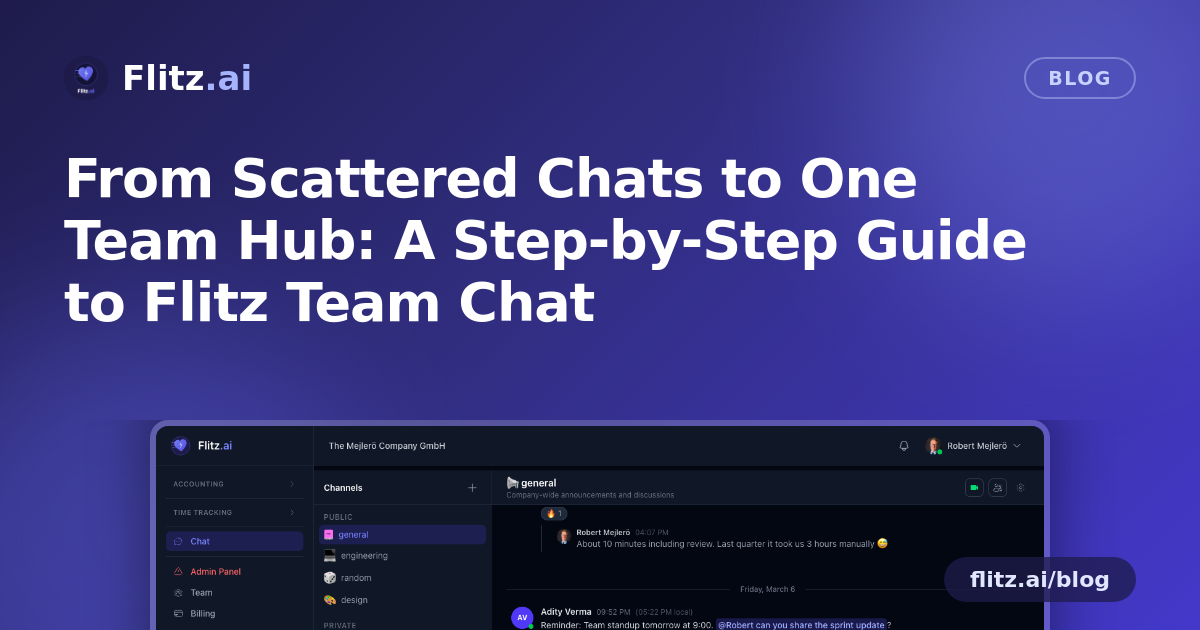
If your team currently coordinates through a mix of WhatsApp groups, personal email threads, and the occasional phone call, you already know the cost: important decisions get buried in group chats, files get lost in download folders, and nobody can find the one message that confirmed a delivery date. Most Swiss SMEs don't set out to build this chaos — it just accumulates, app by app, as the team grows.
The good news is that untangling it doesn't require a big, disruptive project. Below is a practical, step-by-step path to moving your business communication into Flitz Team Chat, the messaging platform built directly into your Flitz workspace.
Step 1: Map out who talks to whom — and why
Before switching tools, take ten minutes to list your current communication channels: the sales WhatsApp group, the "Office" email chain, the ad-hoc calls with your fiduciary. For each one, note its real purpose. This isn't busywork — it's the blueprint for the channel structure you'll build next. Most SMEs find they actually have four or five recurring conversation topics hiding inside a messy inbox: operations, a specific project, finance questions, and general announcements.
Step 2: Create public channels for anything team-wide
In Flitz Team Chat, set up a public channel for each topic you identified — for example "General," "Operations," and one per active project. Public channels mean anyone on the team can join and search past conversations, which immediately solves the "I wasn't in that WhatsApp group so I missed it" problem. Unlike a chat app that lives outside your business tools, these channels sit inside the same platform as your invoicing, CRM, and HR data, so context is never more than a click away.
Step 3: Set up private channels for sensitive topics
Not every conversation belongs in a public space. Payroll questions, contract negotiations, or management-only decisions need a private channel visible only to invited members. Create these alongside your public ones so sensitive topics have a proper home instead of defaulting to a private WhatsApp message that nobody else can ever reference again.
Step 4: Use threads instead of letting conversations run on
Once your channels are live, get the team into the habit of replying in threads rather than posting a new message every time. Threaded conversations keep a single topic — say, a client question or an invoice discrepancy — contained and easy to follow later, instead of scattered across a channel timeline. This is one of the biggest practical upgrades over group chat apps, where a single decision can take forty messages to trace back.
Step 5: Bring in @mentions, reactions, and file sharing
Replace "did you see my message?" follow-up calls with an @mention — the person gets notified directly, even if the channel is busy. Reactions let colleagues acknowledge a message without adding noise, and file attachments mean a signed PDF, a photo of a delivery, or a spreadsheet can be dropped directly into the relevant thread instead of emailed around and forgotten. The emoji picker makes these quick acknowledgements fast and natural, so fewer things need a full reply at all.
Step 6: Set your availability and schedule
Encourage each team member to set their online/offline status, with schedule support for working hours. This small step reduces the number of messages sent to someone who's off for the day and sets clear expectations about response times — especially useful for teams with part-time staff or flexible hours, which is common across Swiss SMEs.
Step 7: Connect your preferred meeting provider per channel
If a conversation needs a live discussion, you don't have to leave Flitz to book it. You can integrate any online meeting provider per channel, so a quick video call can be launched directly from the context where the discussion is already happening — no hunting for a link in a separate calendar invite.
Step 8: Install the desktop app and turn on notifications
Finally, have the team install the native desktop app. With OS notifications and a dock badge, nobody needs to keep a browser tab open or check a phone constantly — important messages surface the same way they would in any other app on the desktop, but without needing a separate, unrelated piece of software installed and maintained.
What changes once this is in place
After these eight steps, your team communication lives in one searchable, structured place that's directly connected to the rest of your business data in Flitz — your invoices, your CRM contacts, your HR records. Instead of hunting through three apps to reconstruct what was decided last Tuesday, you have a channel, a thread, and a timestamp. For growing Swiss SMEs juggling client work, MWST deadlines, and staff schedules, that's not a nice-to-have — it's time and clarity you get back every single week.